
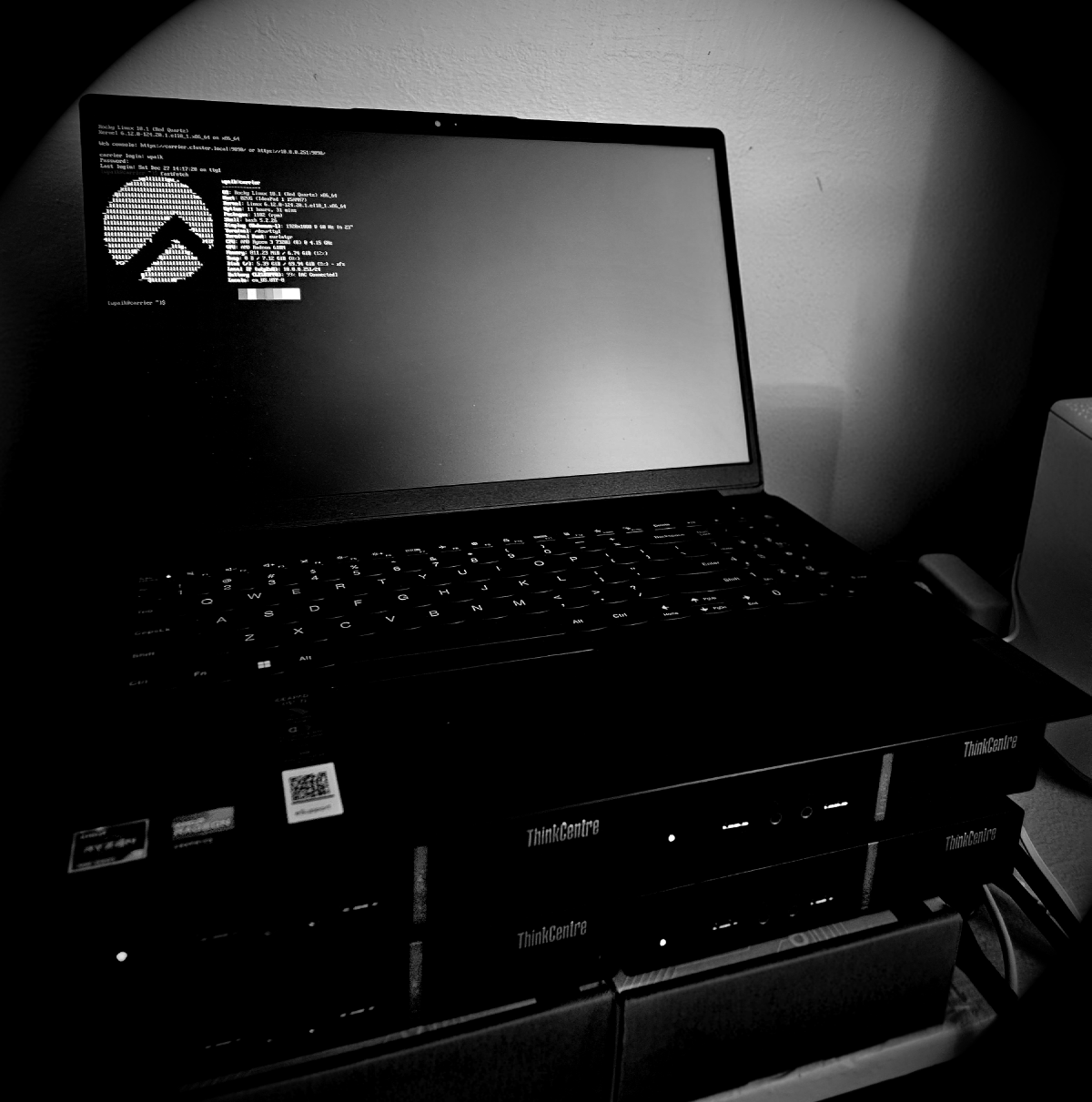

The cluster has storage and authentication. Now it needs a brain.
In Episode 4, we set up NFS shared storage, FreeIPA centralized authentication, and Ansible for cluster management. Every node shares the same home directory and user accounts work everywhere.
But right now, if you want to run a job, you SSH into a compute node and run it directly. That is fine for one person on one node. It falls apart the moment two people try to use the same node at the same time, or when you need to coordinate work across multiple nodes. That is what a job scheduler solves.
This episode covers Slurm: why we build it from source, how Munge handles authentication between nodes, what slurm.conf actually controls, and how to submit your first real cluster job.
*(Click the image to watch the tutorial on YouTube)*1. What Slurm Actually Does #
Without a job scheduler, a shared cluster works like a kitchen with no coordination. Everyone grabs resources when they want them. One person’s job starves another. There is no way to ask for two nodes at once and have them guaranteed to be free at the same time.
Slurm is the receptionist from the HPC 101 series, at scale. It tracks every CPU, every gigabyte of memory, and every GPU across all nodes. When you submit a job, Slurm holds it in a queue until the requested resources are available, then assigns it to the right nodes and runs it.
The three components we need:
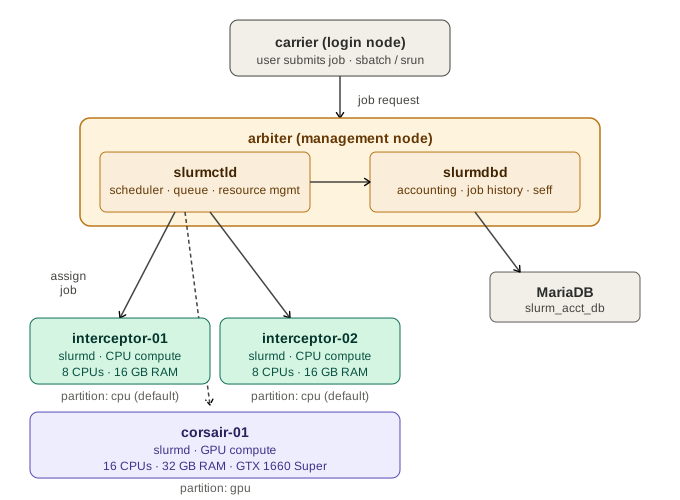
slurmctld runs on the management node (arbiter). It is the controller: maintains the queue, makes scheduling decisions, and talks to the compute nodes.
slurmd runs on each compute node. It receives job assignments from the controller, runs the actual work, and reports back.
slurmdbd also runs on arbiter. It connects Slurm to a MariaDB database and records every job: who ran it, how long it took, how much CPU and memory it used. This powers seff, sacct, and fair share scheduling.
Our cluster layout:
2. Why Build from Source #
The obvious question is why not just dnf install slurm. There are two reasons.
Version control. When you run dnf upgrade on all nodes, Slurm gets upgraded too. A version mismatch between slurmctld and slurmd breaks the cluster. The controller and compute nodes must run identical versions. Building from source and distributing RPMs means you control exactly when Slurm gets updated, separate from the rest of the system.
Feature support. Rocky Linux 10 runs cgroup v2 by default. Older Slurm builds default to cgroup v1, which causes job accounting and memory tracking to fail silently. Building from source lets you pass --with cgroupv2 explicitly. Similarly, PMIx support for MPI job launching requires build flags that are not included in the standard distribution packages.
The build process compiles Slurm on the management node (arbiter) and packages it as RPMs, which then get distributed to all other nodes via Ansible.
# Build on arbiter, targeting Slurm 25.11.1
rpmbuild -ta slurm-25.11.1.tar.bz2 \
  --define "_slurm_sysconfdir /etc/slurm" \
  --with cgroupv2 \
  --with pmix
EPEL for runtime dependencies #
The build pulls in gtk2-devel as a development dependency, which causes the resulting slurm base RPM to depend on the GTK2 runtime libraries libgdk-x11-2.0.so.0 and libgtk-x11-2.0.so.0 (used by sview, Slurm’s GUI viewer). On Rocky Linux 10 these libraries are not in the default repositories. They live in EPEL, so EPEL must be enabled on every node before the install step in section 4, or dnf rejects the local RPMs with a depsolve error.
[wpaik@arbiter ansible]$ ansible all_nodes -b -m dnf -a "name=epel-release state=present"If you prefer to avoid the GTK2 dependency entirely, pass --without gtk to rpmbuild and sview gets dropped from the build. HPC compute nodes never run sview anyway, so this is the cleaner option for a headless cluster.
All build dependencies, the full build playbook, and the RPM distribution playbook are in the GitHub repository.
3. Munge: The Authentication Layer #
Before Slurm can communicate between nodes, it needs a way to verify that messages are actually coming from the cluster and not from somewhere else. That is Munge’s job.
Munge generates encrypted tokens using a shared secret key. Every node in the cluster has the same key at /etc/munge/munge.key. When slurmctld sends a message to slurmd, it attaches a Munge token. The compute node decrypts it with the shared key and verifies the message is legitimate.
The key is generated once on arbiter and distributed to all nodes by Ansible:
# Generate key on arbiter
dd if=/dev/urandom bs=1 count=1024 > /etc/munge/munge.key
chmod 400 /etc/munge/munge.key
chown munge:munge /etc/munge/munge.key
Critical: Slurm UID must match across all nodes.
Munge verifies not just the key but also the UID of the process that created the token. If the slurm user has UID 386 on arbiter and UID 990 on interceptor-01, Munge will reject the token with a security violation error. The cluster will appear to start but jobs will never run.
We set a fixed UID of 1111 for the Slurm user on every node before installing Slurm:
groupadd -g 1111 slurm
useradd -u 1111 -g slurm -s /bin/bash -d /var/lib/slurm slurm
Verify all nodes have matching UIDs:
[wpaik@arbiter ansible]$ ansible all_nodes -m shell -a "id slurm" -b
arbiter.cluster.local | rc=0 >>
uid=1111(slurm) gid=1111(slurm) groups=1111(slurm)
interceptor-01.cluster.local | rc=0 >>
uid=1111(slurm) gid=1111(slurm) groups=1111(slurm)
interceptor-02.cluster.local | rc=0 >>
uid=1111(slurm) gid=1111(slurm) groups=1111(slurm)
corsair-01.cluster.local | rc=0 >>
uid=1111(slurm) gid=1111(slurm) groups=1111(slurm)
carrier.cluster.local | rc=0 >>
uid=1111(slurm) gid=1111(slurm) groups=1111(slurm)
All matching. Verify Munge is running and the shared key works:
# Test Munge authentication locally
$ munge -n | unmunge

# Test across nodes
$ munge -n | ssh interceptor-01.cluster.local unmunge
STATUS:          Success (0)
ENCODE_HOST:     arbiter.cluster.local (192.168.50.50)
DECODE_HOST:     interceptor-01.cluster.local (192.168.50.15)
MUNGE_UID:       slurm (1111)
Note on firewall: Worker nodes have firewalld disabled. The login node (
carrier) has its internal interface in the trusted zone. If you are running firewalld on compute nodes, open ports 6817 (slurmctld), 6818 (slurmd), and 6819 (slurmdbd).
4. Installing Slurm #
After building the RPMs on arbiter, Ansible distributes and installs them across the cluster. Each node gets a different set of packages depending on its role.
| Node type | Packages |
|---|---|
| Management (arbiter) | slurm, slurmctld, slurmdbd, mariadb |
| Compute (interceptor, corsair) | slurm, slurmd, slurm-libpmi |
| Login (carrier) | slurm, slurm-contribs (includes seff) |
slurm-libpmi on the compute nodes provides the PMI2 and PMIx libraries that MPI implementations use to launch parallel processes via srun. Without it, MPI jobs fail with PMI version errors when trying to use srun as the launcher.
slurm-contribs on the login node includes seff, the job efficiency tool. It reads accounting data from slurmdbd and shows you exactly how much CPU and memory your job actually used versus what you requested.
The install playbook expects two things to already be true: EPEL is enabled on every node (section 2), and the Ansible controller’s remote_tmp points to a local path on the target nodes (set in Episode 4’s ansible.cfg). The second one matters because the install copies RPMs through Ansible’s staging directory. If that directory lives on NFS (the default location on this cluster, since /home is NFS-mounted), the RPMs inherit the nfs_t SELinux context, and dnf rejects them with a confusing No match for argument error even though the file is plainly on disk. The remote_tmp = /var/tmp/.ansible-${USER}/tmp line in ansible.cfg keeps the staging area on local disk and avoids the trap.
After installation completes successfully, pin the Slurm version in dnf so a future dnf upgrade does not pull a different build (most notably from EPEL, which ships its own slurm packages without our cgroup v2 and PMIx flags). The install playbook handles this as its last step:
ansible all_nodes -b -m shell -a "echo 'exclude=slurm*' >> /etc/dnf/dnf.conf"

# Verify
ansible all_nodes -b -m shell -a "grep slurm /etc/dnf/dnf.conf"
The order matters: pin after the install succeeds, never before. Pinning before install causes dnf to refuse to install slurm at all, again with a No match for argument error. When you eventually need to upgrade Slurm, remove the line first, rebuild, reinstall, and the playbook re-adds the pin at the end.
The complete installation playbooks are in the GitHub repository under ep05-slurm/playbooks/.
5. Configuring Slurm #
All Slurm configuration lives in /etc/slurm/slurm.conf on every node. The file must be identical across the cluster. We generate it on arbiter and distribute it via Ansible.
Here is the complete slurm.conf for this cluster:
# Cluster identity
ClusterName=cluster
SlurmctldHost=arbiter
SlurmUser=slurm
AuthType=auth/munge

# Scheduling
SchedulerType=sched/backfill
SelectType=select/cons_tres
SelectTypeParameters=CR_Core_Memory

# Logging
SlurmctldDebug=info
SlurmctldLogFile=/var/log/slurm/slurmctld.log
SlurmdDebug=debug
SlurmdLogFile=/var/log/slurm/slurmd.log

# State and PID files
StateSaveLocation=/var/spool/slurmctld
SlurmdSpoolDir=/var/spool/slurmd
SlurmctldPidFile=/run/slurm/slurmctld.pid
SlurmdPidFile=/run/slurm/slurmd.pid

# Cgroup (v2)
ProctrackType=proctrack/cgroup
TaskPlugin=task/cgroup,task/affinity

# Job accounting
JobAcctGatherType=jobacct_gather/cgroup
JobAcctGatherFrequency=30
AccountingStorageType=accounting_storage/slurmdbd
AccountingStorageHost=arbiter.cluster.local
AccountingStoragePort=6819
JobCompType=jobcomp/none
AccountingStorageTRES=gres/gpu
AccountingStoreFlags=job_comment,job_env,job_script

# GPU support
ReturnToService=1
GresTypes=gpu

# MPI default
MpiDefault=pmix

# Nodes
NodeName=interceptor-01 CPUs=8 Sockets=1 CoresPerSocket=4 ThreadsPerCore=2 RealMemory=15413 State=UNKNOWN
NodeName=interceptor-02 CPUs=8 Sockets=1 CoresPerSocket=4 ThreadsPerCore=2 RealMemory=15413 State=UNKNOWN
NodeName=corsair-01 CPUs=16 Sockets=1 CoresPerSocket=8 ThreadsPerCore=2 RealMemory=30802 Gres=gpu:nvidia_geforce_gtx_1660_super:1 State=UNKNOWN

# Partitions
PartitionName=cpu Nodes=interceptor-01,interceptor-02 Default=YES MaxTime=INFINITE State=UP
PartitionName=gpu Nodes=corsair-01 Default=NO MaxTime=INFINITE State=UP
A few things worth noting:
RealMemory values come from running free -m on each node, same as in Episode 2 for the iGPU memory trap. The values here reflect what the OS actually reports after hardware reservations. Do not use the installed RAM number.
The M715q nodes each have 16GB installed, but the integrated Vega GPU reserves a portion as VRAM. The exact amount depends on the BIOS UMA Frame Buffer Size setting. If this is left on Auto, different nodes may end up with slightly different values even with identical hardware. In Episode 2 we pinned arbiter’s UMA setting to 256MB explicitly. If your compute nodes still show different free -m totals, check the UMA setting in each node’s BIOS and pin them to the same value. The slurm.conf RealMemory for each node should match that node’s actual free -m total output.
MpiDefault=pmix sets PMIx as the default MPI process management interface for srun. Without this, srun defaults to PMI2, which causes compatibility errors with OpenMPI when launching parallel jobs. If you see MPI jobs hanging or failing with PMI version errors, this is the first thing to check.
SelectTypeParameters=CR_Core_Memory tells Slurm to track both cores and memory when allocating resources. This is required for seff to report memory usage accurately.
The cgroup configuration lives in a separate file:
# /etc/slurm/cgroup.conf
ConstrainCores=yes
ConstrainRAMSpace=yes
ConstrainSwapSpace=no
ConstrainDevices=yes
ConstrainCores and ConstrainRAMSpace enforce the resource limits you request in your job script. If your job tries to use more memory than requested, Slurm kills it with an out-of-memory error rather than letting it consume resources silently. This requires cgroup v2, which is confirmed on this cluster:
$ stat -fc %T /sys/fs/cgroup
cgroup2fs
MariaDB and slurmdbd store accounting data. The setup creates a slurm_acct_db database and a slurm database user, then configures slurmdbd to connect to it. The slurmdbd configuration in /etc/slurm/slurmdbd.conf must have mode 600 and be owned by the slurm user, or slurmdbd will refuse to start.
6. Disabling Swap on Compute Nodes #
Swap needs to be disabled on compute nodes before running Slurm jobs. When ConstrainRAMSpace=yes is set in cgroup.conf, Slurm enforces memory limits via cgroup. If swap is active, a process that hits the RAM limit can spill into swap instead of being killed, which defeats the memory constraint and makes seff memory reporting inaccurate.
The login node (carrier) and management node (arbiter) can keep swap enabled since they do not run compute jobs.
Disable swap permanently on compute nodes via systemd:
ansible workers,gpu -b -m systemd \
  -a "name=swap.target state=stopped enabled=no"
Verify after the next reboot:
$ cat /proc/swaps
Filename    Type    Size    Used    Priority
# Empty output means swap is off
Note: The swap UUID may still appear in
/etc/fstab. This is fine as long asswap.targetis disabled in systemd. The unit will fail to activate on boot with adependencyerror, which is the expected behavior.
7. Starting the Cluster #
Services must start in order. slurmdbd must be running before slurmctld tries to connect to it.
# On arbiter
$ sudo systemctl start mariadb
$ sudo systemctl start slurmdbd
$ sudo systemctl start slurmctld

# On each compute node
$ sudo systemctl start slurmd
After services are up, initialize the accounting database:
$ sacctmgr -i add cluster cluster
$ sacctmgr -i add account root Description="Root" Organization="Cluster"
$ sacctmgr -i add user wpaik Account=root
Check cluster status:
[wpaik@carrier ~]$ sinfo
PARTITION AVAIL  TIMELIMIT  NODES  STATE NODELIST
cpu*         up   infinite      2   idle interceptor-[01-02]
gpu          up   infinite      1   idle corsair-01
All nodes idle and ready. If nodes show as down or drain instead of idle, resume them:
$ scontrol update NodeName=ALL State=RESUME8. Submitting Your First Jobs #
Interactive Job #
[wpaik@carrier ~]$ srun --pty bash
[wpaik@interceptor-01 ~]$ hostname
interceptor-01
[wpaik@interceptor-01 ~]$ exit
srun assigned you to interceptor-01 because it is the first node in the default cpu partition.
Batch Job #
Create a simple batch script:
#!/bin/bash
#SBATCH --job-name=hello
#SBATCH --partition=cpu
#SBATCH --nodes=1
#SBATCH --ntasks=1
#SBATCH --mem=500M
#SBATCH --time=00:05:00
#SBATCH --output=hello_%j.out

echo "Running on: $(hostname)"
echo "Job ID: $SLURM_JOB_ID"
date
sleep 10
echo "Done."
Submit and monitor:
$ sbatch hello.sh
Submitted batch job 1

$ squeue
JOBID PARTITION  NAME     USER  ST  TIME  NODES NODELIST
    1       cpu hello   wpaik   R  0:03      1 interceptor-01

$ cat hello_1.out
Running on: interceptor-01
Job ID: 1
Fri May  9 21:00:00 EDT 2026
Done.
Multi-Node Job #
#!/bin/bash
#SBATCH --job-name=multinode
#SBATCH --partition=cpu
#SBATCH --nodes=2
#SBATCH --ntasks-per-node=4
#SBATCH --mem-per-cpu=1G
#SBATCH --output=multinode_%j.out

srun hostname
$ sbatch multinode.sh
Submitted batch job 2
$ cat multinode_2.out
interceptor-01
interceptor-01
interceptor-01
interceptor-01
interceptor-02
interceptor-02
interceptor-02
interceptor-02Eight tasks across two physical machines, coordinated by Slurm.
GPU Job #
#!/bin/bash
#SBATCH --job-name=gpu_test
#SBATCH --partition=gpu
#SBATCH --nodes=1
#SBATCH --gres=gpu:1
#SBATCH --output=gpu_%j.out

nvidia-smi
Checking Efficiency with seff #
After a job completes, check how efficiently it used the requested resources:
$ seff 1
Job ID: 1
Cluster: cluster
User/Group: wpaik/wpaik
State: COMPLETED (exit code 0)
Cores: 1
CPU Utilized: 00:00:01
CPU Efficiency: 10.00% of 00:00:10 core-walltime
Job Wall-clock time: 00:00:10
Memory Utilized: 1.20 MB
Memory Efficiency: 0.24% of 500.00 MB
CPU efficiency is low because sleep 10 does nothing. Memory efficiency is low because we requested 500MB but the script barely used any. This is exactly the kind of feedback seff is designed to give. Right-size your resource requests based on what jobs actually use.
9. Common Issues #
Nodes stuck in down or drain state after startup
$ scontrol update NodeName=ALL State=RESUMEIf they keep going back to down, check the slurmd log on the affected node:
$ ssh interceptor-01 "sudo tail -n 50 /var/log/slurm/slurmd.log"Slurm UID mismatch (Security violation)
If srun hangs or you see authentication errors in the logs, check that the slurm user has the same UID on every node:
$ ansible all_nodes -m shell -a "id slurm" -bIf UIDs differ, use 08_sync_slurm_uid.yaml from the GitHub repository to fix them. Note that if the target UID is occupied by another system user on a particular node, you will need to reassign that user to a different UID first before moving slurm into place.
MPI jobs fail with PMI errors
Check that MpiDefault=pmix is in slurm.conf and that slurm-libpmi is installed on compute nodes. Also verify that the PMIx security mode is set:
$ cat /etc/profile.d/pmix.sh
export PMIX_MCA_psec=native
slurmdbd fails to start
Check permissions on /etc/slurm/slurmdbd.conf. It must be mode 600 and owned by the slurm user:
$ ls -la /etc/slurm/slurmdbd.conf
-rw------- 1 slurm slurm 312 Apr 27 09:00 /etc/slurm/slurmdbd.conf
Also verify MariaDB is running before starting slurmdbd:
$ sudo systemctl status mariadbseff shows no memory data
seff requires JobAcctGatherType=jobacct_gather/cgroup in slurm.conf and ConstrainRAMSpace=yes in cgroup.conf. Both require cgroup v2. Verify with stat -fc %T /sys/fs/cgroup.
dnf install fails with No match for argument even though the RPM is on disk
Two distinct causes both surface as this same error:
-
SELinux context inherited from NFS. Ansible’s per-task staging directory defaults to
~/.ansible/tmp/, which on this cluster lives on NFS-mounted/home. Files copied through it pick up thenfs_tSELinux context, and dnf silently refuses to handle them as local RPMs. Confirm withls -lZ /tmp/slurm_rpms/— if the context isnfs_t, this is it. The permanent fix is theremote_tmp = /var/tmp/.ansible-${USER}/tmpline inansible.cfgfrom Episode 4. As an immediate workaround:sudo restorecon -Rv /tmp/slurm_rpms/ -
dnf exclude pinning was added before install. If
/etc/dnf/dnf.confalready containsexclude=slurm*from a previous run, dnf strips the matching argument and reports it as missing. Check withgrep slurm /etc/dnf/dnf.conf. For a reinstall, either remove the line first or pass--disableexcludes=all:sudo dnf install -y --disableexcludes=all /tmp/slurm_rpms/slurm-*.rpm
dnf install fails with nothing provides libgdk-x11-2.0.so.0 or libgtk-x11-2.0.so.0
EPEL is not enabled on the failing node. The Slurm base RPM depends on GTK2 runtime libraries that are not in Rocky 10’s default repositories. Install EPEL on the affected node and retry:
sudo dnf install -y epel-releaseOr rebuild Slurm with --without gtk so the GTK2 dependency is removed entirely.
10. What is Next #
The cluster is now a real HPC system. Jobs are scheduled, resources are tracked, and seff shows efficiency data after each run.
The next episode covers Slurm accounting in depth: setting up accounts and users in slurmdbd, configuring partitions with resource limits, and fair share scheduling so heavy users do not monopolize the cluster.
All Ansible playbooks, configuration files, and the Slurm build scripts from this episode are in the GitHub repository.
Happy Computing!