
[HPC Special Topics] Rclone: Cloud-to-Cluster Data Transfers
Published:
Stop using your laptop as a middleman.
Welcome to the first HPC Special Topics post. This is a standalone deep dive that builds on concepts from the HPC 101 series.
In the Data Transfer post, we learned how to move files using scp and rsync. Those tools work great for laptop-to-cluster transfers. But what about cloud storage?
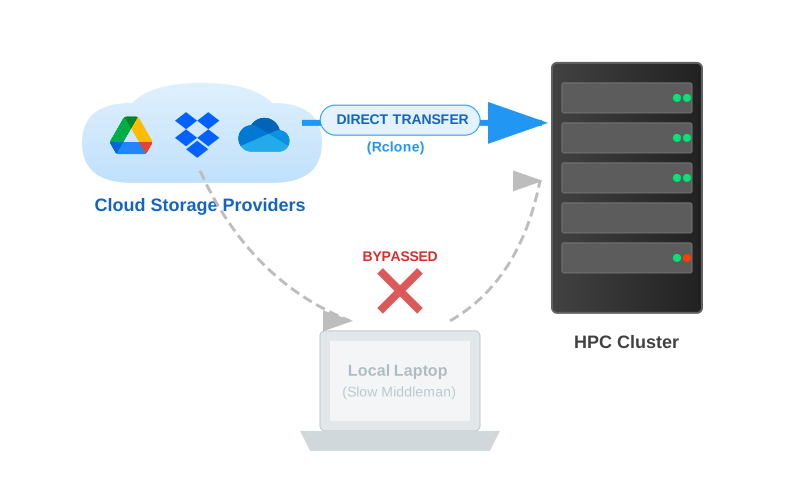
Imagine this: a professor shares a 200GB dataset on Google Drive. Without the right tool, you would download it to your laptop (2 hours on a good day), then scp it to the cluster (another 2 hours). That is 4 hours of babysitting file transfers.
What if you could skip the laptop entirely and pull data straight from Google Drive to your /scratch directory with a single command?
That is exactly what Rclone does.
We will also go beyond the basics and explore an optimization technique often discussed by experienced HPC engineers: how parallel threading can drastically change your transfer speeds and when it does not.
Table of Contents
- 1. Why Rclone?
- 2. Setting Up Rclone on HPC
- 3. Essential Commands
- 4. The Optimization Challenge: Threads vs. Bandwidth
- 5. Benchmark Results
- 6. Finding the Sweet Spot
- 7. Summary & Recommendations
(An accompanying YouTube tutorial for this post is coming soon!)
> 1. Why Rclone?
Rclone is a command-line program to manage files on cloud storage. Think of it as rsync, but for the cloud. It supports over 70 cloud storage providers, including Google Drive, Dropbox, OneDrive, Box, AWS S3, and even SFTP.
Why does this matter on HPC?
Direct Transfer. Move data from Google Drive to your cluster’s /scratch space without touching your laptop. No more download-upload-download cycles.
Parallelization. Unlike scp which sends one file at a time through a single stream, Rclone can transfer multiple files simultaneously. This is where things get interesting (more on this in Section 4).
Reliability. Rclone handles retries, checksums, and interrupted transfers automatically. If your connection drops at 99%, it picks up where it left off just like rsync -P but for cloud storage.
Versatility. One tool, 70+ backends. Whether your collaborator shares data on Google Drive, your institution uses Box, or your pipeline stores results on S3, Rclone handles them all with the same interface.
> 2. Setting Up Rclone on HPC
Important: Many HPC clusters prohibit running large data transfers on the login node. Check your cluster’s policy first. If large transfers are restricted, run Rclone inside a compute job:
$ srun --pty bash
$ module load rclone
$ rclone copy ...
Step 1: Loading Rclone
On many HPC clusters, Rclone is already available as a module.
$ module avail rclone
$ module load rclone
If Rclone is not available as a module, you can install it locally in your home directory:
# Download and unzip
$ curl -O https://downloads.rclone.org/rclone-current-linux-amd64.zip
$ unzip rclone-current-linux-amd64.zip

# Move the binary to your local bin
$ mkdir -p ~/bin
$ cp rclone-*/rclone ~/bin/

# Verify
$ ~/bin/rclone version
Note: If you install locally, make sure
~/binis in your$PATH, or use the full path~/bin/rclonewhen running commands.
Step 2: Connecting to Google Drive (The Headless Challenge)
This is the step that trips up most beginners. Since your HPC cluster does not have a web browser, you must use the headless setup to authenticate.
- Run
rclone configand choosenfor a new remote. - Name it something memorable (e.g.,
gdrive). - Select the provider number for Google Drive.
- For all other prompts (Client ID, Secret, Scope, Root Folder ID, Service Account, Advanced config), just press Enter to accept the defaults.
- When asked “Use auto config?”, choose
n. This is crucial for remote servers without a browser. - Rclone will provide a URL. Copy and paste this URL into your local laptop’s browser.
- Log in to your Google account, authorize Rclone, and copy the verification code back into your HPC terminal.
- When asked about Team Drive, choose
n(unless you use one). - Confirm with
yto save.
(Check the Rclone overview of cloud storage systems for detailed steps to connect to other cloud providers.)
$ rclone config
# Follow the prompts above
# ...

# Verify the connection
$ rclone lsd gdrive:
# You should see your Google Drive folders listed
If you see your folders, you are connected.
Tip: The same process works for Dropbox, OneDrive, and Box. Just choose a different provider number in step 3. Each provider has slightly different authentication steps, but Rclone walks you through them interactively.
> 3. Essential Commands
Before we dive into optimization, let’s cover the commands you will use daily.
Listing and Browsing
# List top-level directories in your cloud
$ rclone lsd gdrive:

# List files in a specific folder
$ rclone ls gdrive:my_project/data

# Show directory tree (great for exploring)
$ rclone tree gdrive:my_project --max-depth 2

# Check storage usage
$ rclone about gdrive:
Copying Data
# Cloud -> Cluster (the most common use case)
$ rclone copy gdrive:my_data ~/scratch/my_data -P
# -P: Shows real-time progress, speed, and ETA

# Cluster -> Cloud (backing up results)
$ rclone copy ~/scratch/results gdrive:results -P
Copy vs. Sync: Know the Difference
# copy: Only adds new files. Never deletes anything at the destination.
$ rclone copy gdrive:data ~/scratch/data -P

# sync: Makes destination identical to source. DELETES files at
#        destination that don't exist at source. Use with caution!
$ rclone sync gdrive:data ~/scratch/data -P
Warning:
rclone syncwill delete files at the destination that are not present at the source. Always double-check your command before running sync. When in doubt, usecopy.
At this point, you have everything you need to use Rclone as a daily tool. The next sections explore how to make it faster.
> 4. The Optimization Challenge: Threads vs. Bandwidth
A common insight among experienced HPC engineers is that in many real-world WAN scenarios, a single TCP stream cannot fully utilize available bandwidth due to latency, TCP window limits, and provider-side throttling. The solution? Open more streams.
Rclone has a key flag for this:
--transfers=N # Number of files to transfer in parallel (default: 4)
This raised a few questions worth testing:
- Does increasing threads always make things faster?
- Is there a point of diminishing returns?
- Does uploading (send) behave the same as downloading (receive)?
The Experiment
- Environment: 4-core HPC compute node, 1Gbps network, Rclone with default Google Drive API (shared client ID).
- Scenario A: A single large 5GB file (generated with
/dev/urandomto prevent compression shortcuts). - Scenario B: 1,000 small files (1MB each, also random data).
- Variable:
--transfersset to 1, 4, 8, 16, and 32. - Repetitions: 3 runs per condition to ensure consistency.
> 5. Benchmark Results
Scenario A: The Single Giant (5GB)
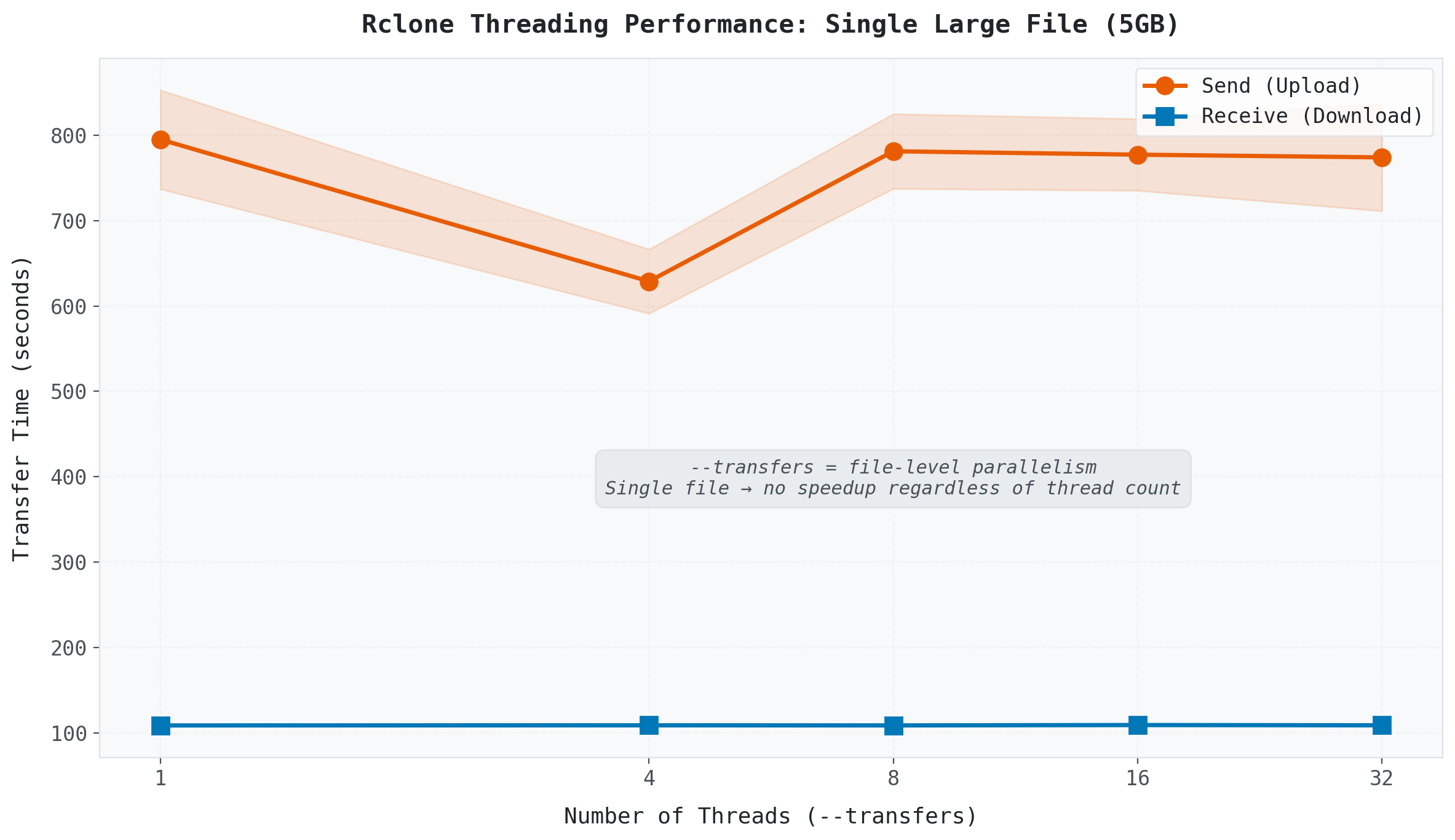 (Transfer time for a single 5GB file across different thread counts.)
The line is flat. Whether you set --transfers to 1 or 32, the transfer time barely changes.
Why? Because --transfers controls file-level parallelism. It determines how many files are transferred simultaneously. If you only have one file, there is nothing to parallelize. One file, one stream, regardless of the thread count.
This is a common misconception: --transfers=16 does not split a single file into 16 chunks. It opens 16 slots for 16 separate files.
Advanced Note: Rclone does provide
--multi-thread-streamsfor chunk-level parallel downloads of single large files on supported backends. However, this works only for downloads and its effectiveness varies by provider. For most use cases, the--transfersflag covered here is what you want.
Takeaway: For large single files, increasing
--transfershas no effect. The transfer speed is determined by your network bandwidth and the cloud provider’s per-stream throughput.
Scenario B: The Small File Storm (1,000 × 1MB)
This is where threading shines.
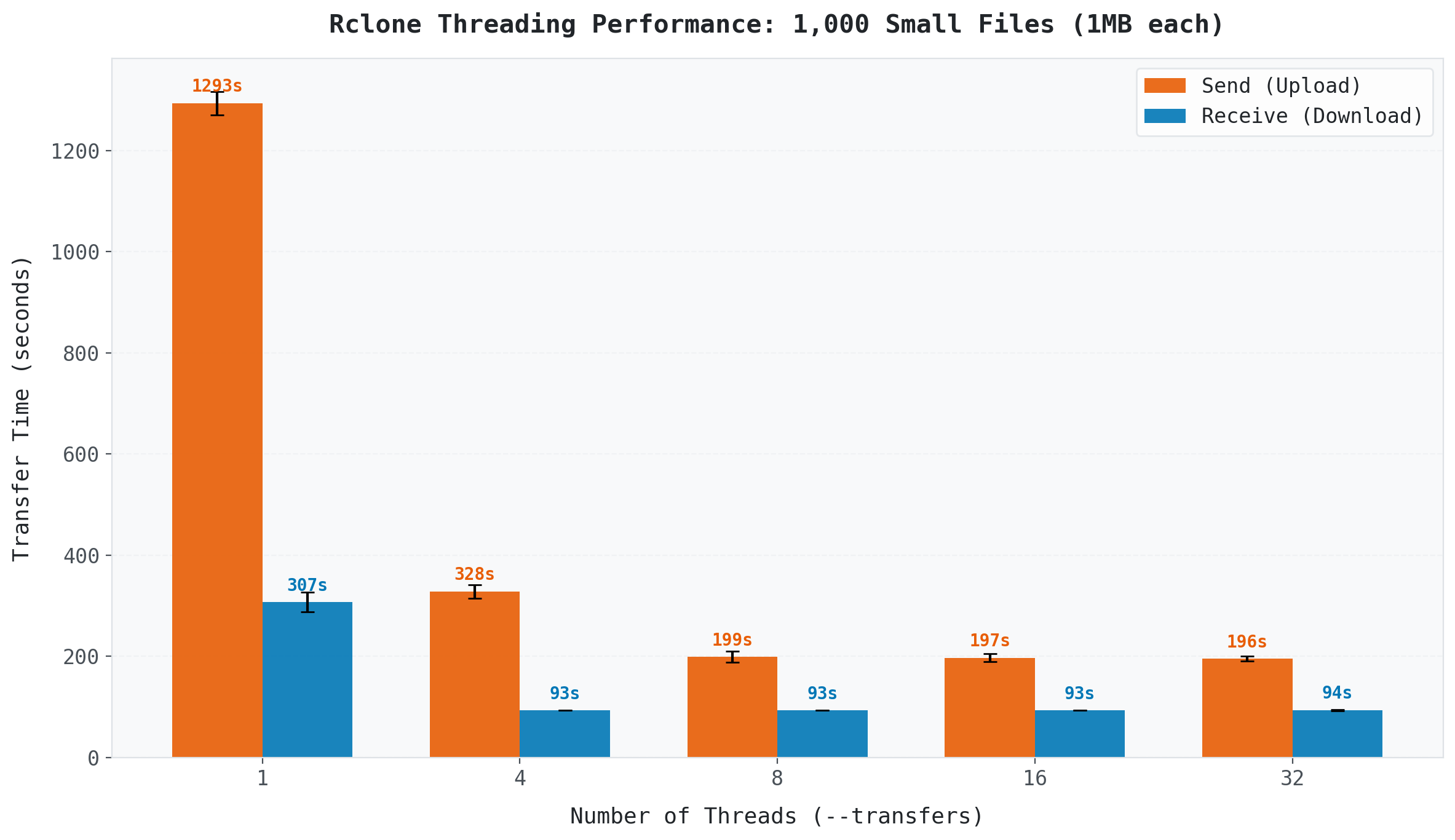 (Transfer time for 1,000 small files (1MB each) across different thread counts.)
With a single thread, uploading 1,000 files took 1,293 seconds (over 21 minutes). At 8 threads, it dropped to 199 seconds (about 3 minutes). That is a 6.5x speedup just by changing one flag.
Downloads tell a slightly different story: 1 thread took 307 seconds, while 4 threads brought it down to 93 seconds (a 3.3x improvement). But beyond 4 threads, download speed barely changed.
Why are small files so sensitive to threading? Each file transfer involves API calls, metadata verification, checksum validation, and connection overhead. With a single thread, you wait for all of this to complete before starting the next file. Multiple threads hide this per-file latency by overlapping transfers, which is why the speedup is so dramatic.
> 6. Finding the Sweet Spot
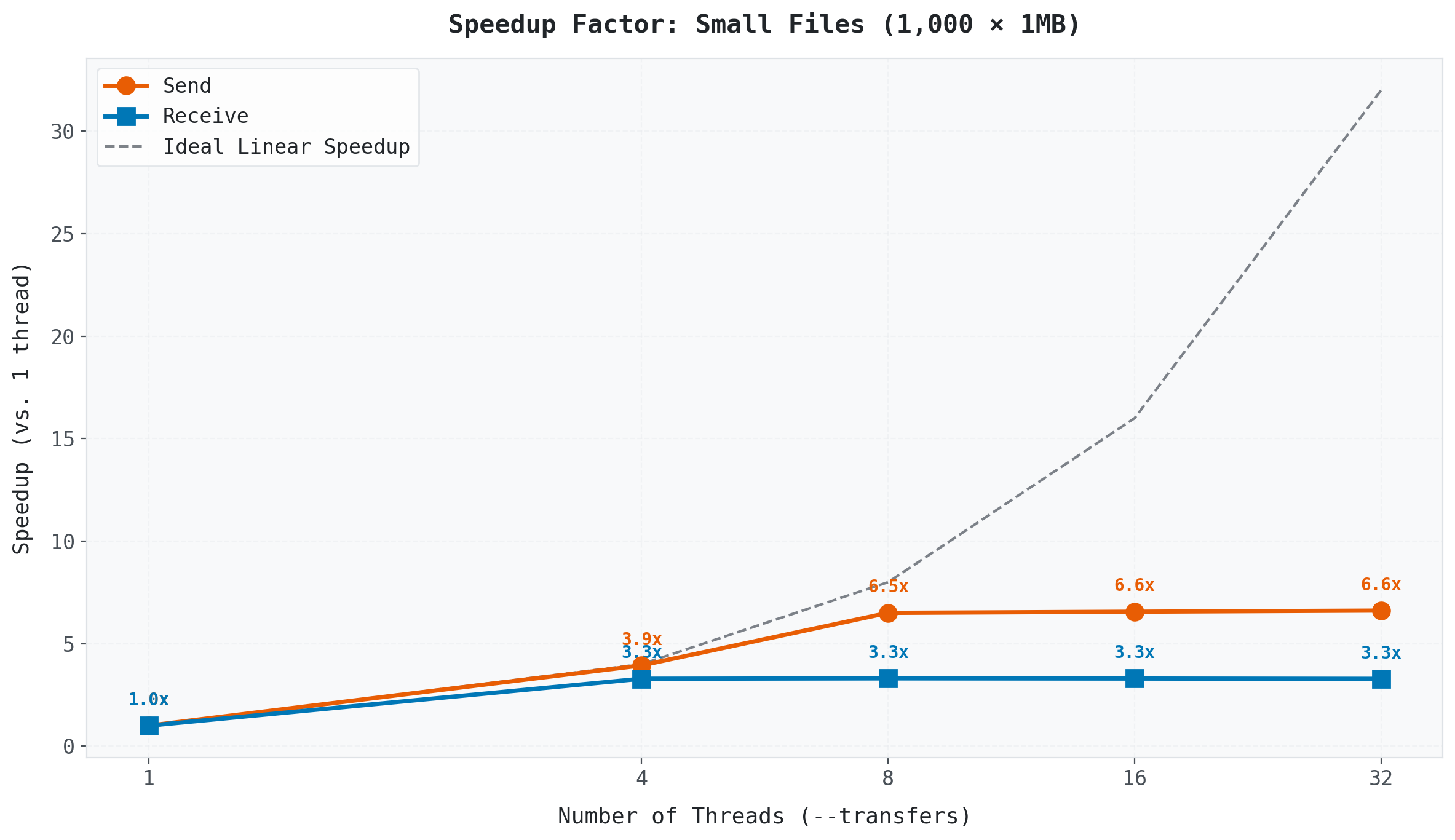 (Speedup factor relative to single-thread baseline.)
The Plateau Effect
Performance gains essentially stop after 8 threads. Why?
API Rate Limits. Google Drive (and most cloud providers) limit the number of API requests per second. Adding more threads beyond the provider’s limit just leads to throttling and retries. This is especially strict when using the default shared API client ID that all Rclone users share.
Tip for Power Users: Creating your own Google API client ID can significantly increase your API quota and may shift the optimal thread count higher. See the Rclone Google Drive documentation for details.
Overhead. Managing 32 concurrent transfers creates its own overhead which is connection setup, checksum verification, and retry logic. They all compete for resources.
Send (Upload) vs. Receive (Download)
Notice that downloading is significantly faster and saturates earlier than uploading across all conditions.
When you upload, the cloud provider must verify, index, and store each file as it arrives. When you download, the provider serves files from optimized CDN infrastructure with less per-file processing overhead. This asymmetry means your optimal --transfers value may differ depending on the direction of your transfer.
Efficiency: Why 8 Is the Magic Number
We can measure how efficiently each thread contributes to speedup:
\[Efficiency = \frac{Speedup}{Number \: of \: Threads} × 100\%\]
| Threads | Send Speedup | Efficiency |
|---|---|---|
| 1 | 1.0x | 100% |
| 4 | 3.9x | 98% |
| 8 | 6.5x | 81% |
| 16 | 6.6x | 41% |
| 32 | 6.6x | 21% |
At 8 threads, you get 81% efficiency, and each thread is pulling its weight. At 32 threads, efficiency drops to 21%. You are using 4x the resources for essentially zero additional speedup.
For this specific setup (1Gbps network, default Google Drive API client), 8 threads was the sweet spot. Your optimal number may differ depending on your network speed, cloud provider, and API configuration, but the methodology for finding it is the same: test, measure, compare.
Note: These numbers are specific to Google Drive with the default shared API client ID. Your results may vary depending on the cloud provider, network speed, and API configuration. The methodology, however, applies universally.
> 7. Summary & Recommendations
Rclone is more than a convenience tool. It is a direct pipeline between your cloud storage and your cluster.
Key Takeaways:
- Skip the laptop. Use Rclone to transfer data directly between cloud and cluster.
- Threads matter for small files. Threads hide per-file latency overhead. Thousands of files? Use
--transfers 8or--transfers 16. - Threads do not help single large files.
--transfersis file-level parallelism, not file-splitting. - Uploads and downloads behave differently. Downloads saturate earlier. Plan accordingly.
- Don’t overdo it. Setting threads to 64 will likely trigger API throttling and slow you down.
- Pack when possible. Even with Rclone, 100,000 tiny files will be slow. Consider using
tarto bundle them first (as we covered in the Data Transfer post).
| Scenario | Recommended Command |
|---|---|
| Many small files | rclone copy remote:path local:path --transfers 8 -P |
| Few large files | rclone copy remote:path local:path -P |
| Directory sync | rclone sync remote:path local:path -P (use with caution) |
| Check before transfer | rclone lsd remote: and rclone about remote: |
What is Next?
We have added another essential tool to our HPC toolkit. In the next series, we will shift gears completely from using the cluster to building one. We will talk about hardware, networking, and how to turn a pile of parts into a working HPC system.
See you in the next series!
Happy Computing!